
What is a LINE gift shop?
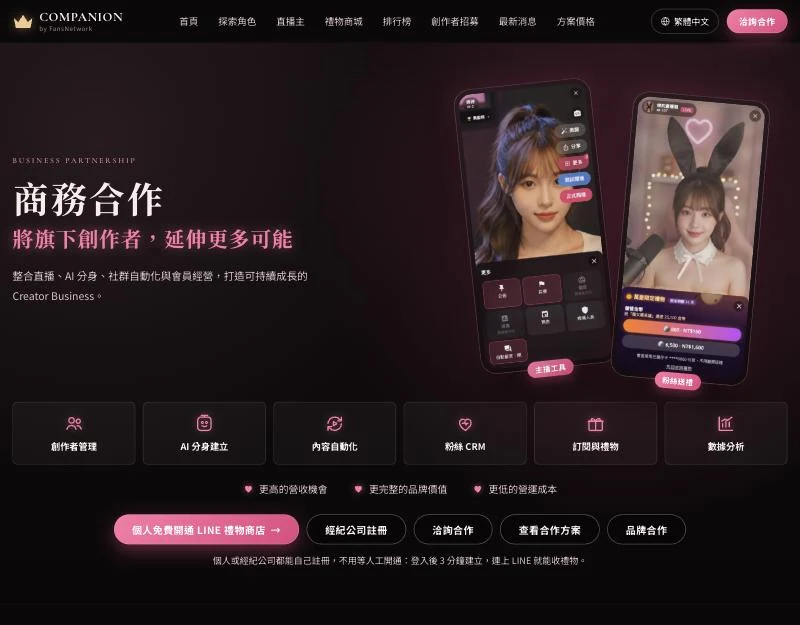
It is a gifting entrance on your own LINE Official Account. When a fan opens your LINE, the rich menu at the bottom has a gift button; tapping it opens the gift shop, where they can pick a gift to send you. The other buttons on the menu are links you choose, such as Instagram, Threads, YouTube or your store. You do not need to build a chatbot or design a menu yourself.
What do I need before I start?
Four things: a Google account to sign in with, a LINE Official Account with the Messaging API turned on, one photo of yourself, and the links you want on the menu. A clear half-body or full-body photo works best, with none of you cut off by the edge of the picture. A LINE Official Account is free to create in LINE Official Account Manager.
Step 1: Sign up from the site as an individual or an agency
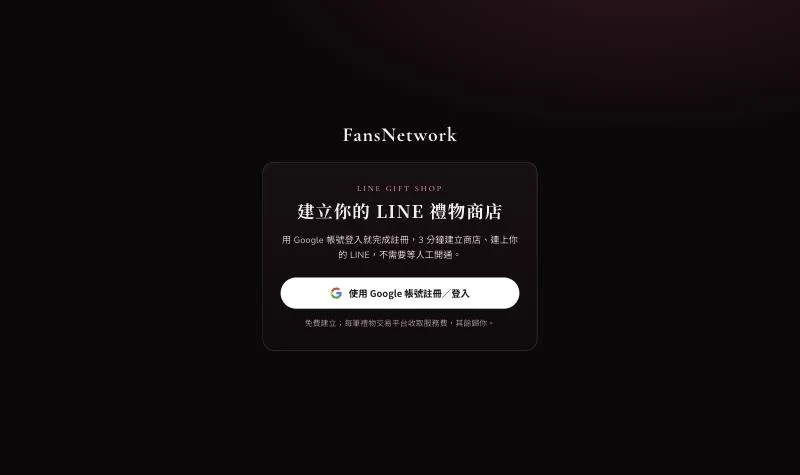
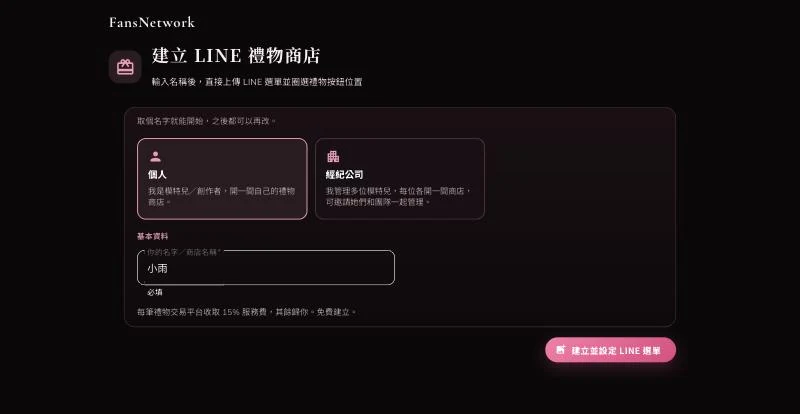
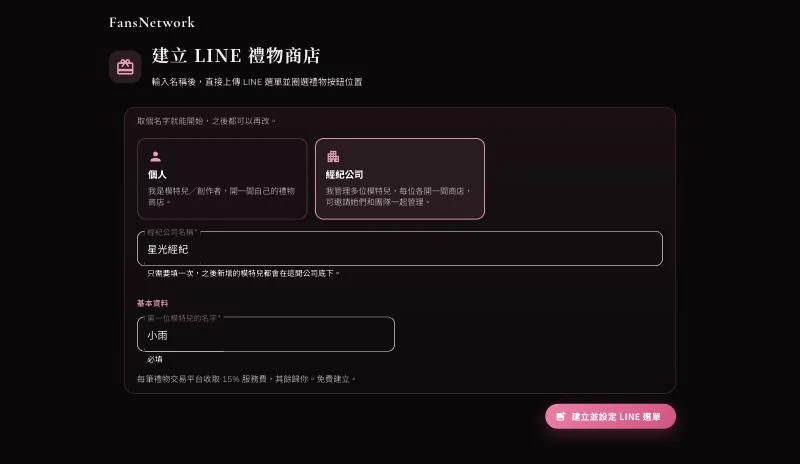
On the FansNetwork partner page, press the individual button or "Agency sign-up" and sign in with Google; that is the whole sign-up. Then choose who you are. An individual only enters a name or shop name. An agency enters the company name once, then the first model's name, and can add more models under the same company later. Press the create button to continue to the menu setup.
Step 2: Connect your LINE Official Account
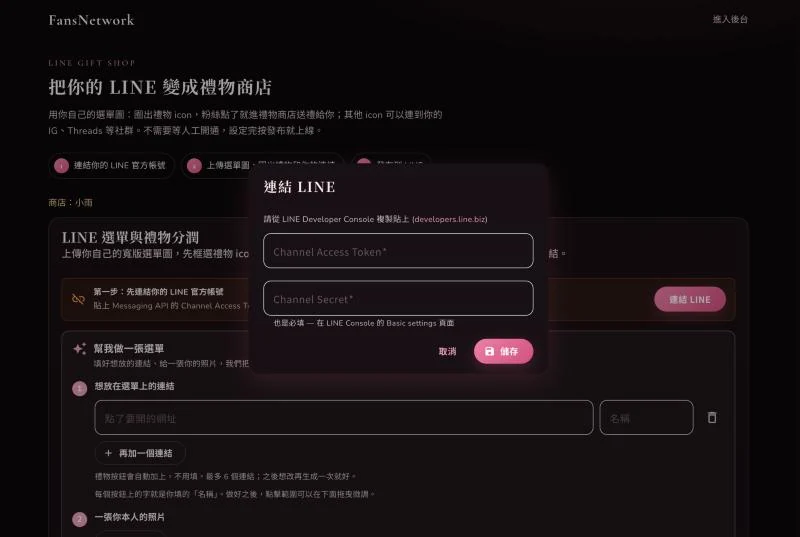
After creating the shop you land on the setup page, which first asks you to connect LINE. Press "Connect LINE" and paste two values: the Channel Access Token and the Channel Secret. Both are in the LINE Developers Console under your Messaging API channel. The Channel Secret is on the Basic settings tab; the Channel Access Token is at the bottom of the Messaging API tab, where you press Issue. Once saved, the setup page shows that LINE is connected, with your account name.
Where to find these two codes: step-by-step screenshots (a gift shop only needs steps 1–7) →
Step 3: Make a menu
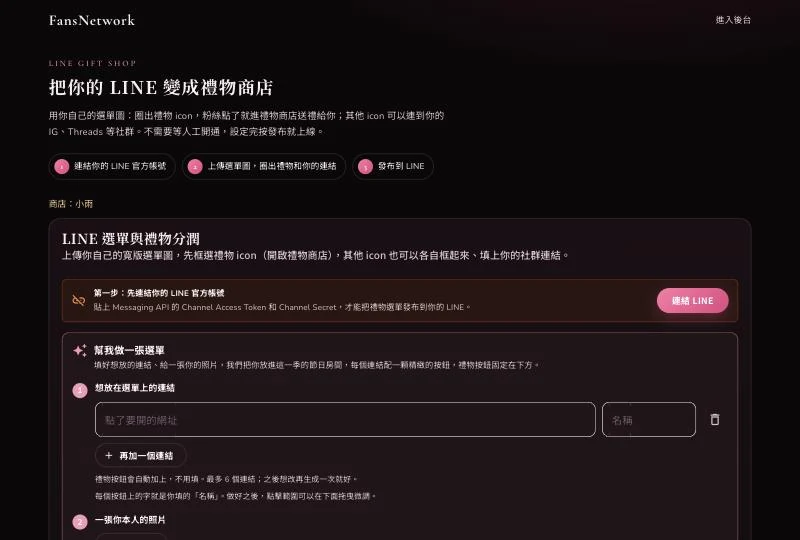
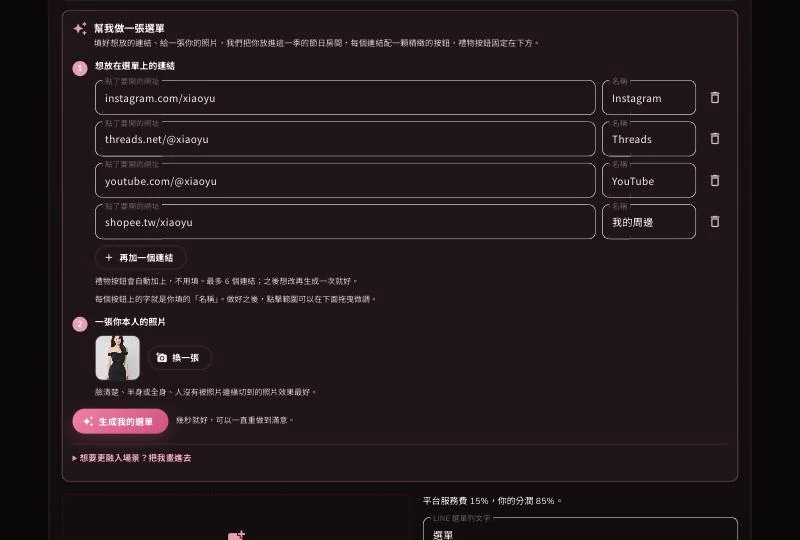
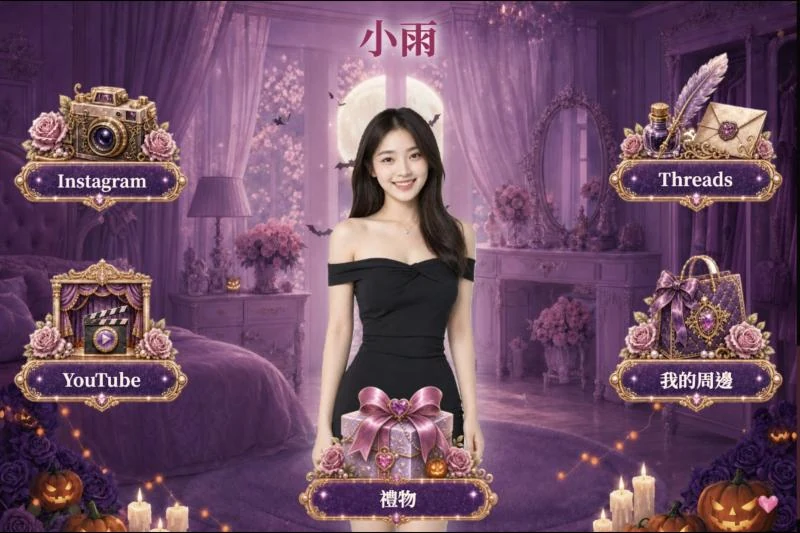
Under "Make my menu for me", enter the links you want. Each link can have its own display name, and common sites fill the name in for you. You can add up to six links; the gift button is added automatically. Then choose a photo of yourself and press the generate button. A few seconds later you see the result: you standing in the season's room, with a matching button for each link. If you are not happy with it, change the photo or the links and press it again.
What if my photo is cut off, or I want to blend into the scene?
If you are cut off by the edge of the photo, the cut shows as a straight edge, and the page suggests a photo with all of you in frame. You can also open "Paint me in" to have the whole menu painted with you in it, dressed to match the theme. That takes one to two minutes, has a daily limit, and may not accept very revealing photos.
Step 4: Create a LIFF app and paste its ID back
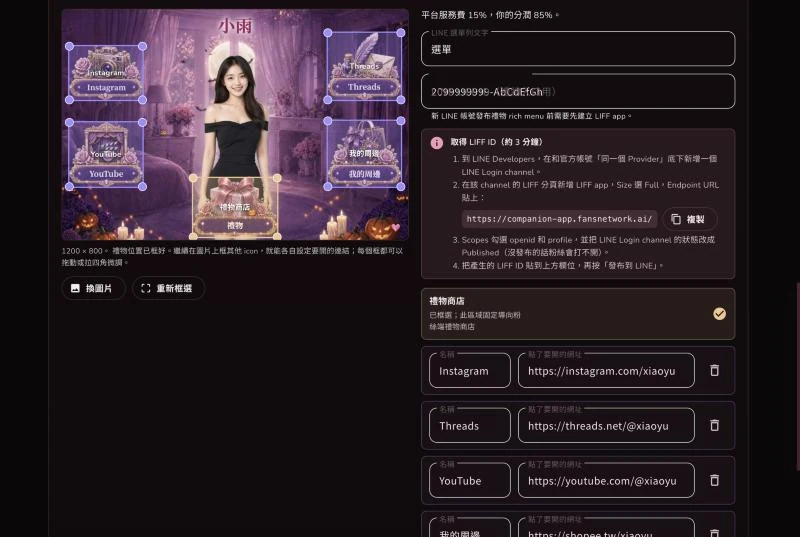
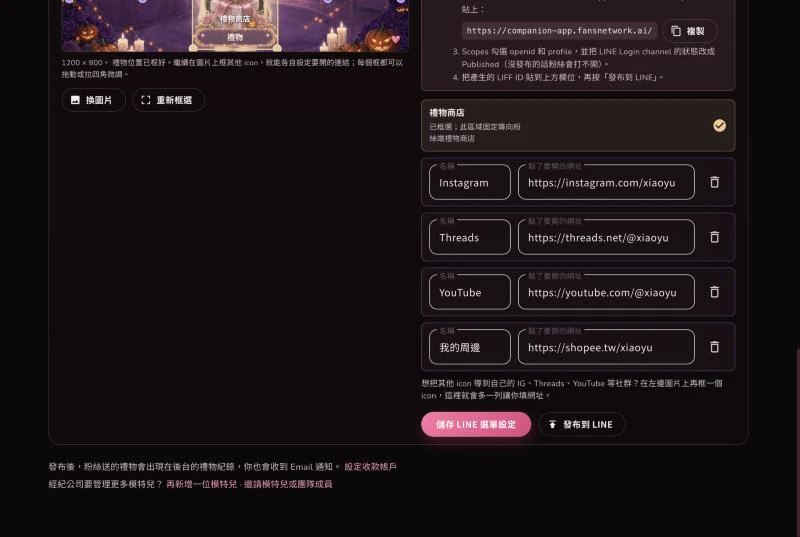
For the gift button to open the shop inside LINE, you need a LIFF app. In LINE Developers, create a LINE Login channel under the same Provider as your Official Account. On its LIFF tab add a LIFF app, set Size to Full, and paste the Endpoint URL the setup page gives you (there is a copy button next to it). Tick the openid and profile scopes. Finally switch the LINE Login channel status to Published, otherwise fans cannot open it. Paste the generated LIFF ID into the field on the setup page.
Step 5: Check the tap areas and publish to LINE
Each button on the menu preview has a box showing where fans can tap. They are placed for you when the menu is generated; drag a box or pull its corners if you want to adjust it. The right side lists each link's name and URL. When everything looks right, press "Publish to LINE". Open the chat screen of your LINE Official Account and the new menu is at the bottom.
Can the menu move or play an animation?
No. A LINE rich menu is a single still image; it cannot hold animation, GIFs or video, so the bats and candles in the background are painted and do not move. To change how it looks, generate a new one and publish it, and the whole menu is replaced.
Where do I see gifts after fans send them?
When a fan goes in through the gift button and pays, the gift appears under "Gift records" in the dashboard, and the email you sign in with gets a notice. The platform takes a service fee on each gift and the rest is yours; the split is shown on the setup page. You enter your payout account under "Settings" in the dashboard.
How does an agency manage several models?
After signing up as an agency, each model has her own shop connected to her own LINE Official Account. At the bottom of the setup page, "Add another model" opens the next shop, and "Invite a model or teammate" brings the model herself or a colleague in to manage it with you.
What if something goes wrong?
Publishing says to connect LINE first: go back to the top of the setup page and finish step 2. Fans tap the gift button and nothing opens: most often the LIFF Endpoint URL is wrong, or the LINE Login channel is not Published yet. The menu fails to generate: try a clearer, better-lit photo. For anything else, contact the FansNetwork team.